Final Instructions &
In Game Settings
ETS2 - "Route of the Wolves" Mods Collection
Ultra Realistic Truck Physics Settings:
IMPORTANT: Do not forget to follow the instructions in the Ultra Realistic Truck Physics & Cabin Motion Mod page at SCS Forum for different settings in the Options. There are screenshots, instructions for Wheels or Keyboard and even a text file included in the download. Read carefully and test in-game the best setup.
You can find the link to the Mod’s page in the mod’s card in our ETS2 Mods Installation page.
LOD Settings:
LOD stands for Level Of Detail and in games means how far away an object appears while the player moves into it, but also when it changes their graphic appearance from simplistic to complex, this is because it saves resources to drawn objects in a simplistic way when they are far away, but it distracting when you notice the switch while playing.
In ETS2, you can adjust a few settings related to LOD and light so the vehicles appears more far away and switch to complex graphics (resolutions) sooner, or in the other words, further from your truck, making less noticeable.
You should test in game these settings after modifying the config.cfg file inside your x:\Documents\Euro Truck Simulator 2 and check performance.
The settings you can experiment with are:
uset g_light_span_factor
uset g_light_distance_factor
uset g_lod_factor_parked
uset g_lod_factor_traffic
The recommendation is to double those values from 1, the original value to 2, using Notepad++ and then testing them in-game.
Performance Optimizations:
IMPORTANT: Do not forget to follow the instructions in the GMC Community Map Combo guide, whether it’s the International Classic or the International Extra version. You will find at the beginning of the guide the Important Setup Information for
- Config Setup
- Launch Options
The last mod card in our ETS2 Mods Installation page will redirect you to GMC Community Map Combo list.

Weather Settings:
We use weather mods in ETS2 The Route of the Wolves like Grimes Seasons and Weather mod, and because of that, the weather events, like rain and storm are much stronger visually.
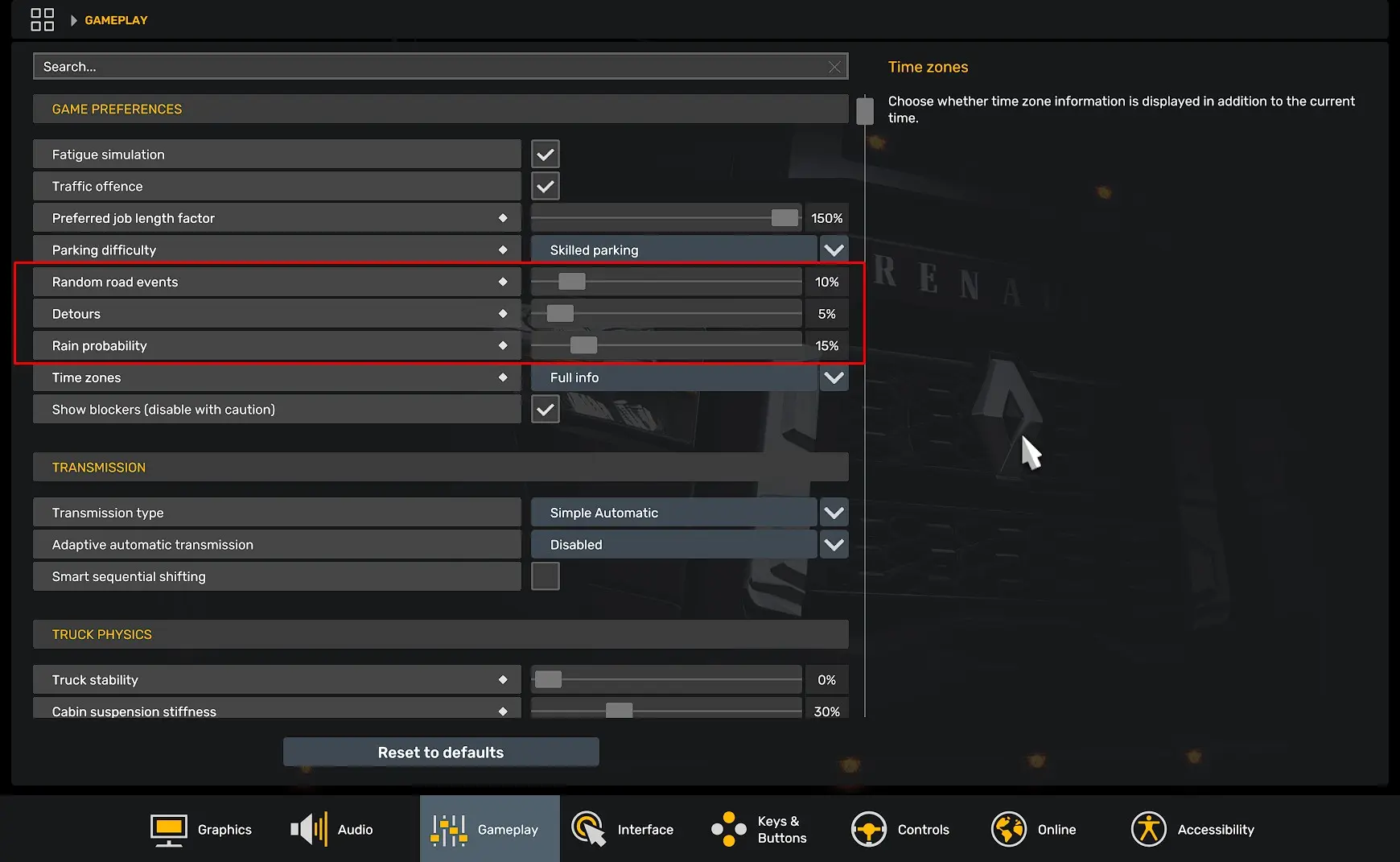
My recommendation is that you tinker with the Rain probability so you find the right value for you.
Personally, I enjoy driving in a rough weather, so I play with 15% of Rain probability, but feel free to lower or higher it.
While you are at it, check the values for Random real events and Detours, again, is a matter of personal preference.
Keyboard & Mouse Layout:
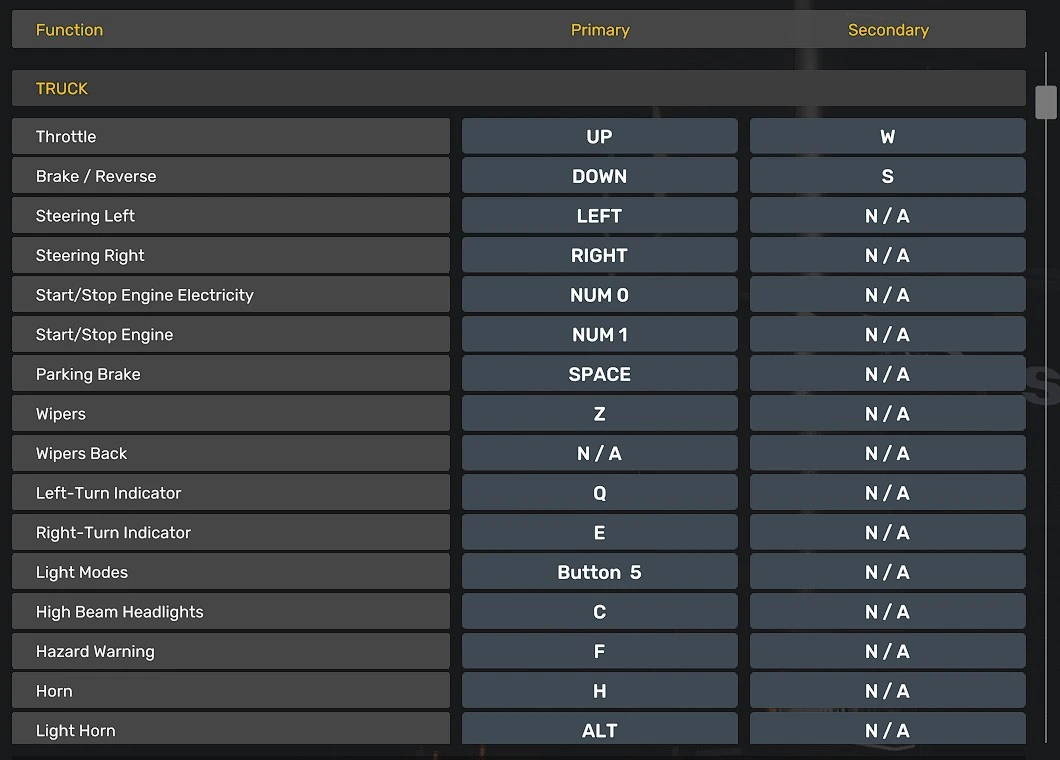
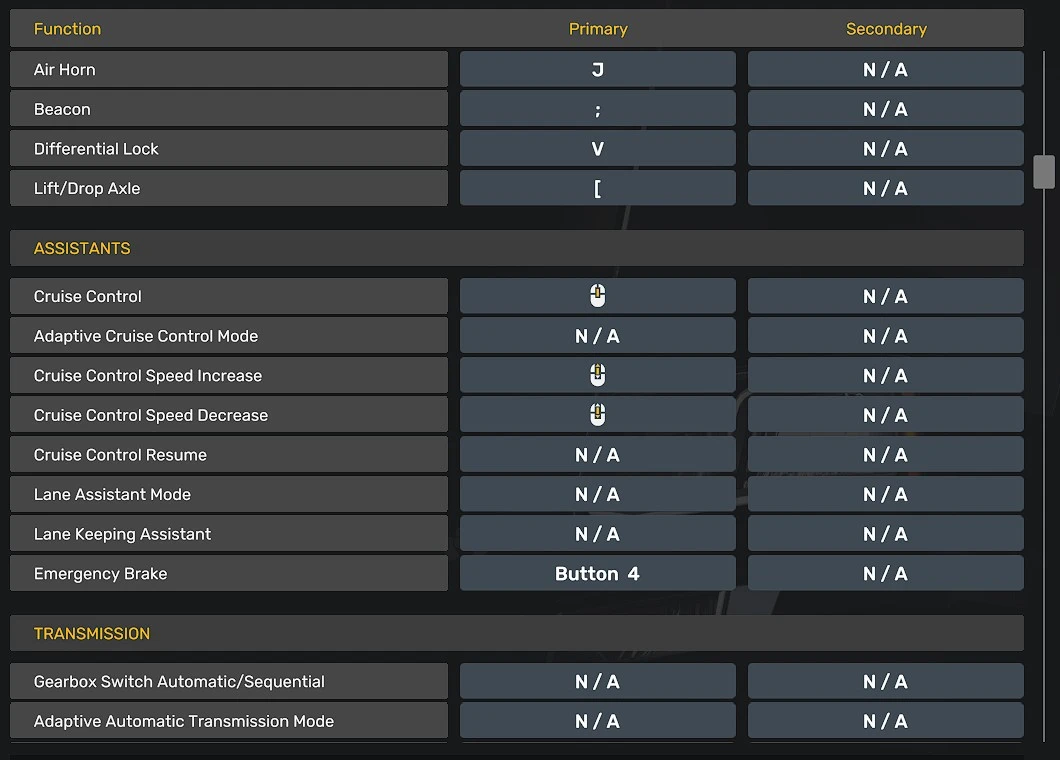
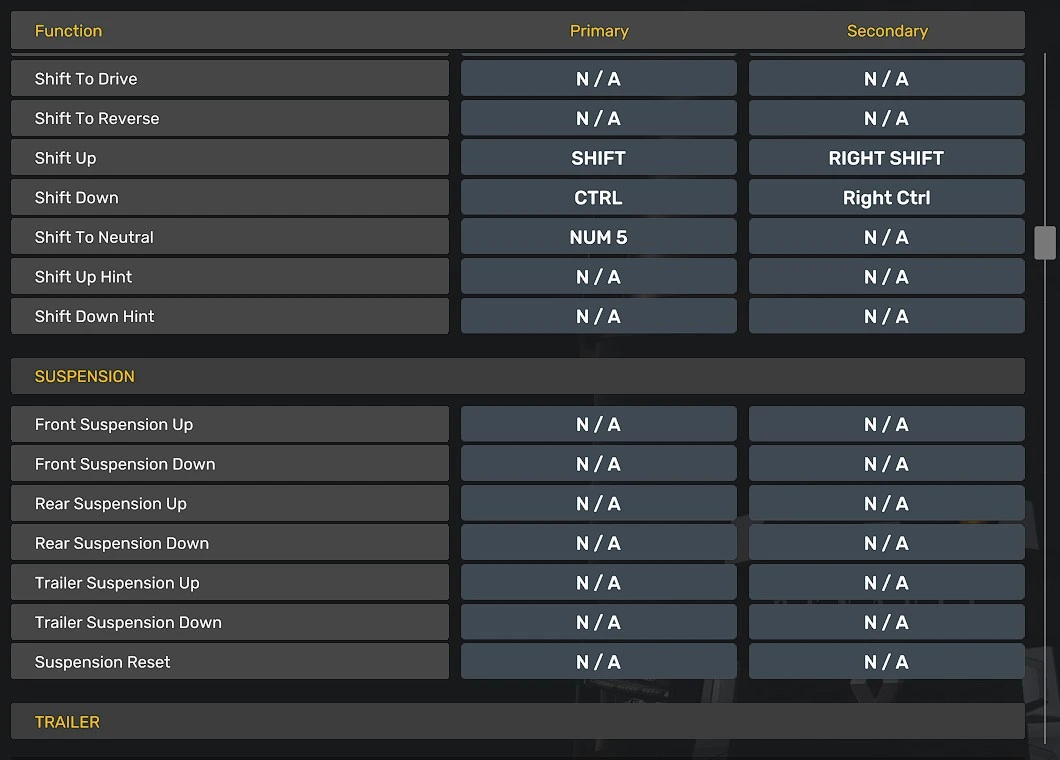
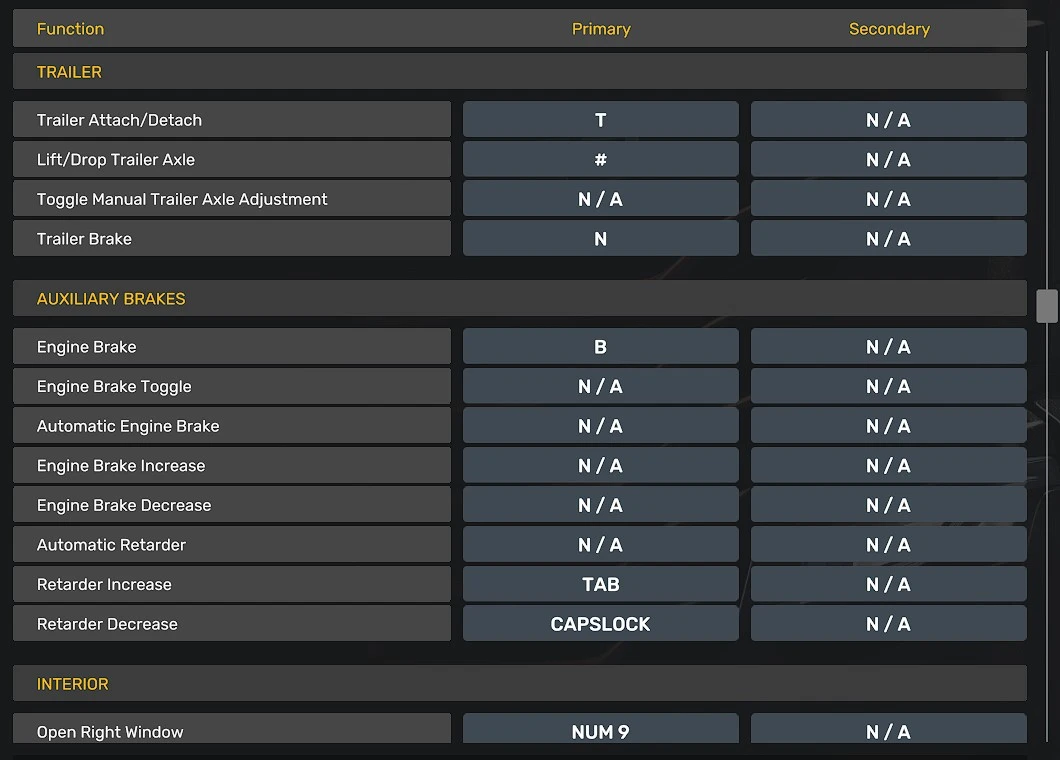
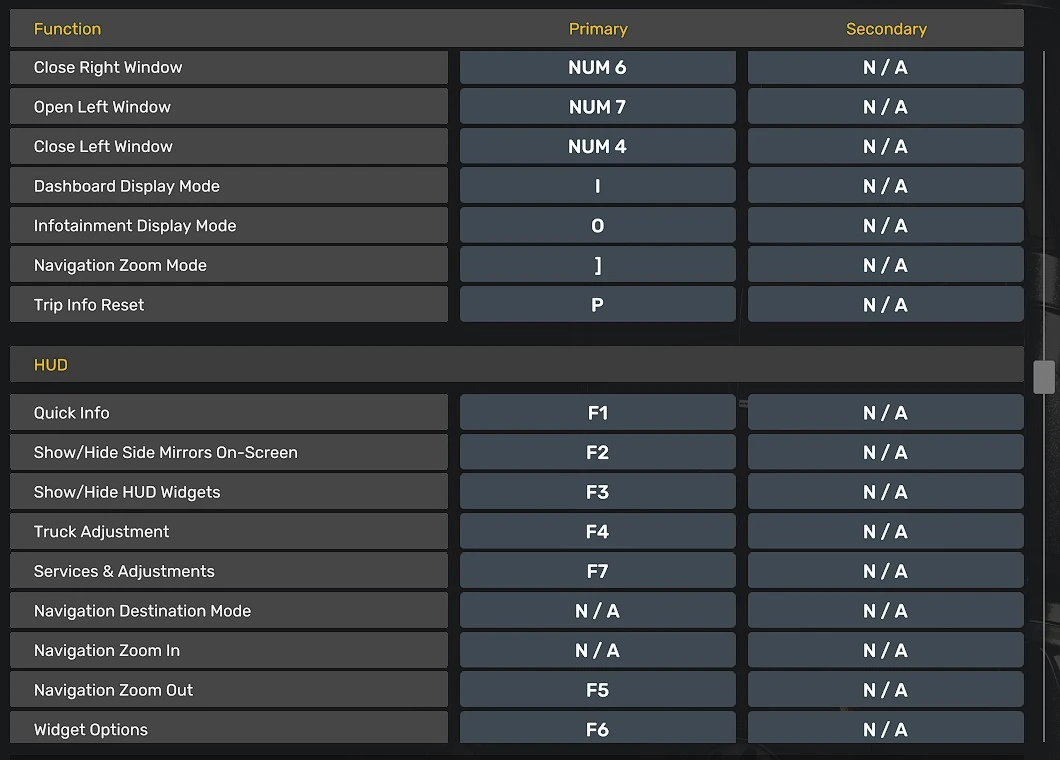
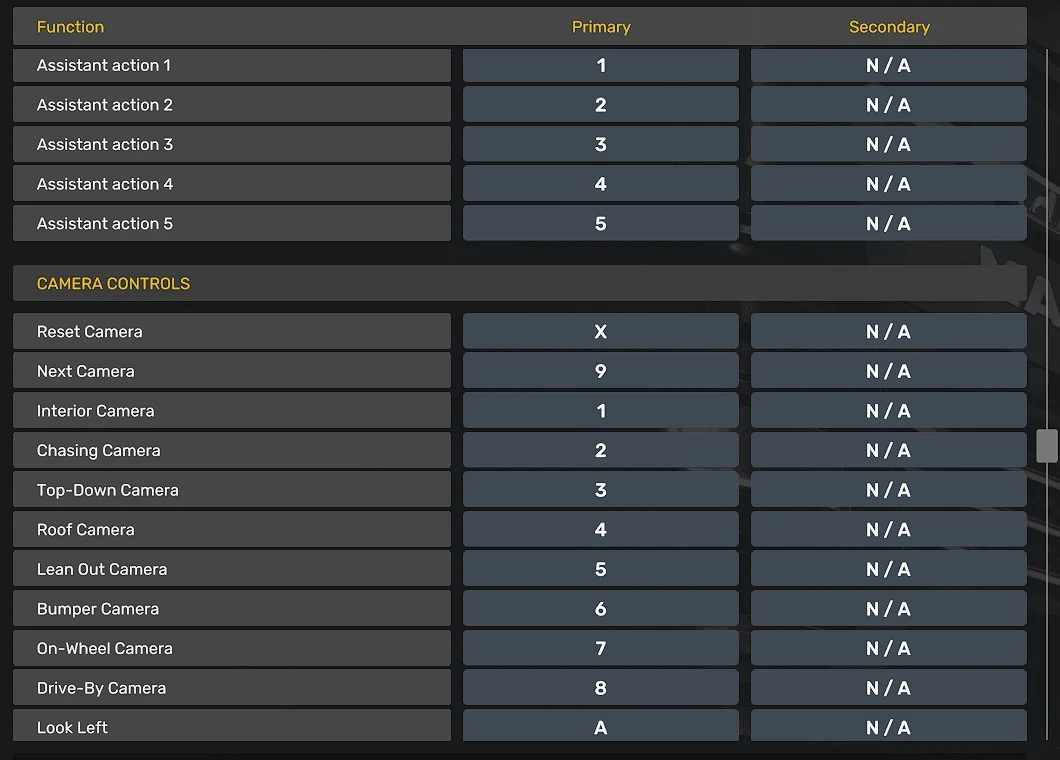
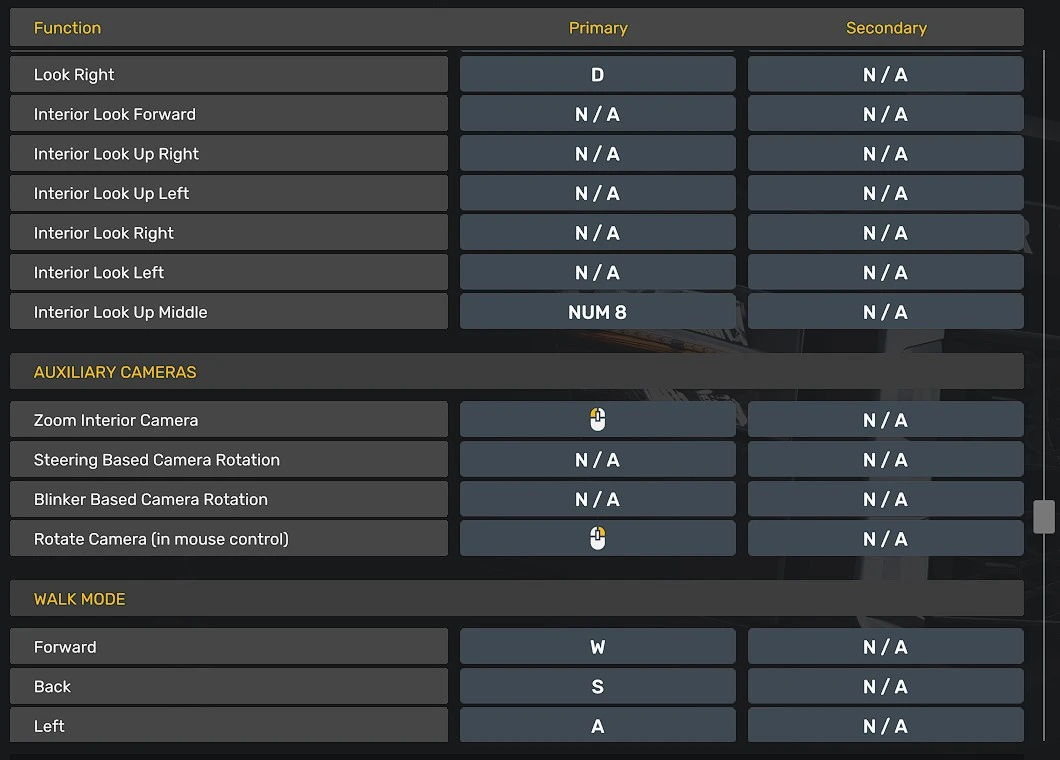
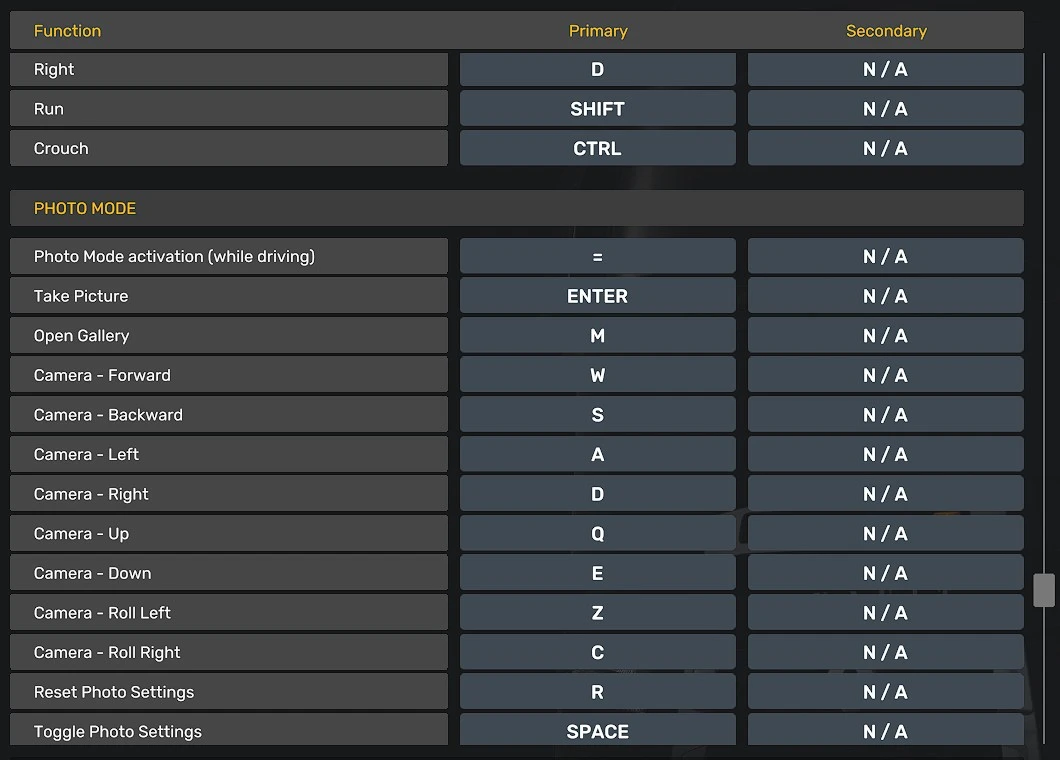
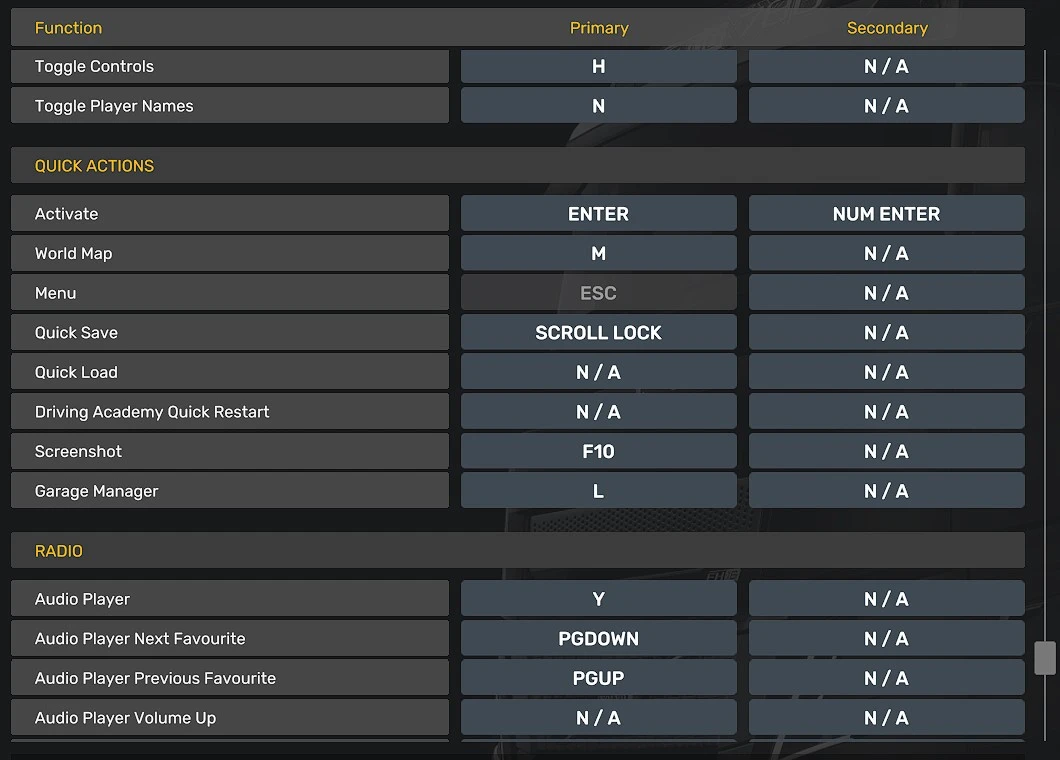
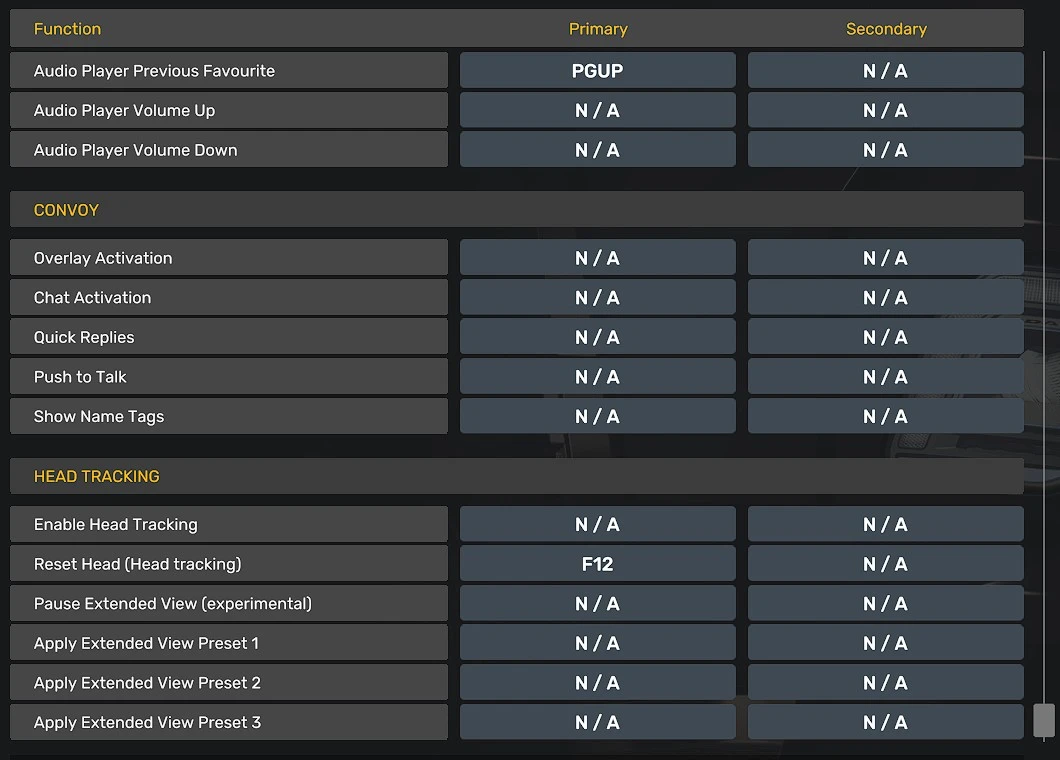
I share my keyboard and mouse layout, so you can use it as reference. It takes some practicing to get used to it. We are open to users sharing their own setup to share.
The idea is to maneuver with the mouse, use the mouse wheel to speed up and down. Do not forget to set your mouse below 800 dpi to have control.