

APPENDIX 6:
How to configure the Radio and Music player in ETS2
ETS2 - "Route of the Wolves" Mods Collection
ETS2 Update 1.60 will bring Game Radio, an SCS official new system where you will be able to listen curated radios while driving. It looks promising and, for sure, will add even more fun to our experience, as players.
Anyway, about the time the official update is out, we will revisit this tutorial and adjust accordingly.
More info about the Game Radio update HERE.
🚛 Why listening music while driving across ETS2
While driving ETS2, it is nice to hear the traffic, the exterior sounds and the roaring cozy of your cabin truck along the powerful engine. But, here and there, and specially long hauls, it becomes all of that too repetitive and numbing.
This is when switching to Radio Stations or your favorite music becomes an on top experience, making again enjoyable the long hauls. Nothing defeats driving the high way listening rock or pop, or radio announcers speaking in the language of the country you are driving through. Or you can even set your preferred stations and listening all day long. Best part is that at any moment you can switch off the radio or music player, turn the volume high or low, and comeback to the game sound only, which was always there, in the background.
Three options, for all your preferences
- Listen your own music files locally.
- Listen your favorite radio stations from across the world.
- Listen radio stations from the country you are driving in.
🔒 Option 1: Listen music using with the in-game music player.
Go to x:\Documents\Euro Truck Simulator 2\music and place inside your favorite .mp3 files. Is recommended to create copies of the original files you have somewhere else in your computer, since it will be probably necessary to edit some of those files to be playable by the in-game media player.
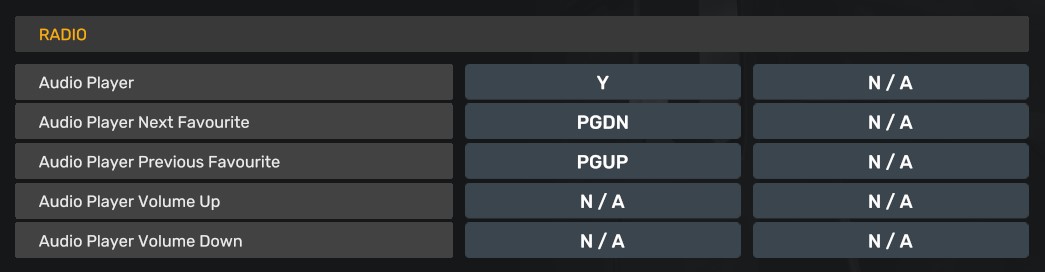
Once in-game, use the control keys assigned to activate the music player and go to the next song and turn the volume up or down.
Troubleshooting
If some songs do not play and the player skip it to the next, there are 3 possibly causes:
- The tags of that specific .mp3 files collide with the player, so you need to use a free tool like Mp3tag, to delete the tags. Here the link to the tool, is free, small and easy to use: LINK.
- The compression of the .mp3 is too high, so the bitrate or something else does not allow the in-game player to reproduce the file. The solution is to recode the .mp3 using an excellent tool, also free: Audacity. Here a link to the tool, is free, light and has many tutorials on how to: LINK.
- The .mp3 files has a way too long name or characters, so you need to simplify the name, to song title and who perform the title.
🔒 Option 2: Listen radio stations from all across the world.
Imagine being able to listen your favorite radio station from any corner of the world, in the language you prefer. That is what you can achieve with this second option.
In order to implement this, you need to visit Radio Trucker in this link:
Here, all you need to do is to create an account, and start picking stations from all over the world that you would like to listen while playing ETS2. You can search by country, by genre and even random. Once you are satisfied with the radios you have added to your playlist, clicking to the + on each, it is time to go to Profile/My Playlists/ETS2 and there you can export to your local files by downloading the zip, then unzipping it and placing the file that is inside in Documents/Euro Truck Simulator 2. Once done, you should have a file named live_streams.sii, if there was already a file with that name, overwrite.
You are now ready to listen in-game your favorites radio stations.
