

APPENDIX 3:
How to Create Different in-game Careers (Profiles)
ETS2 - Colección de Mods "La Ruta de los Lobos"
Careers (Profiles): What are and why we need them.
ETS2 allows us to create and name specific In-Game profiles, know as Careers, that we can dedicate to different purposes, including playing with or without mods. For example:
- One profile to play Vanilla: no mods, only the clean ETS2 experience.
- Another to play the game with all the mods we want to be included.
- Another one with mods allowed in Multiplayer Convoy mod, to spice the experience when playing with friends and other players.
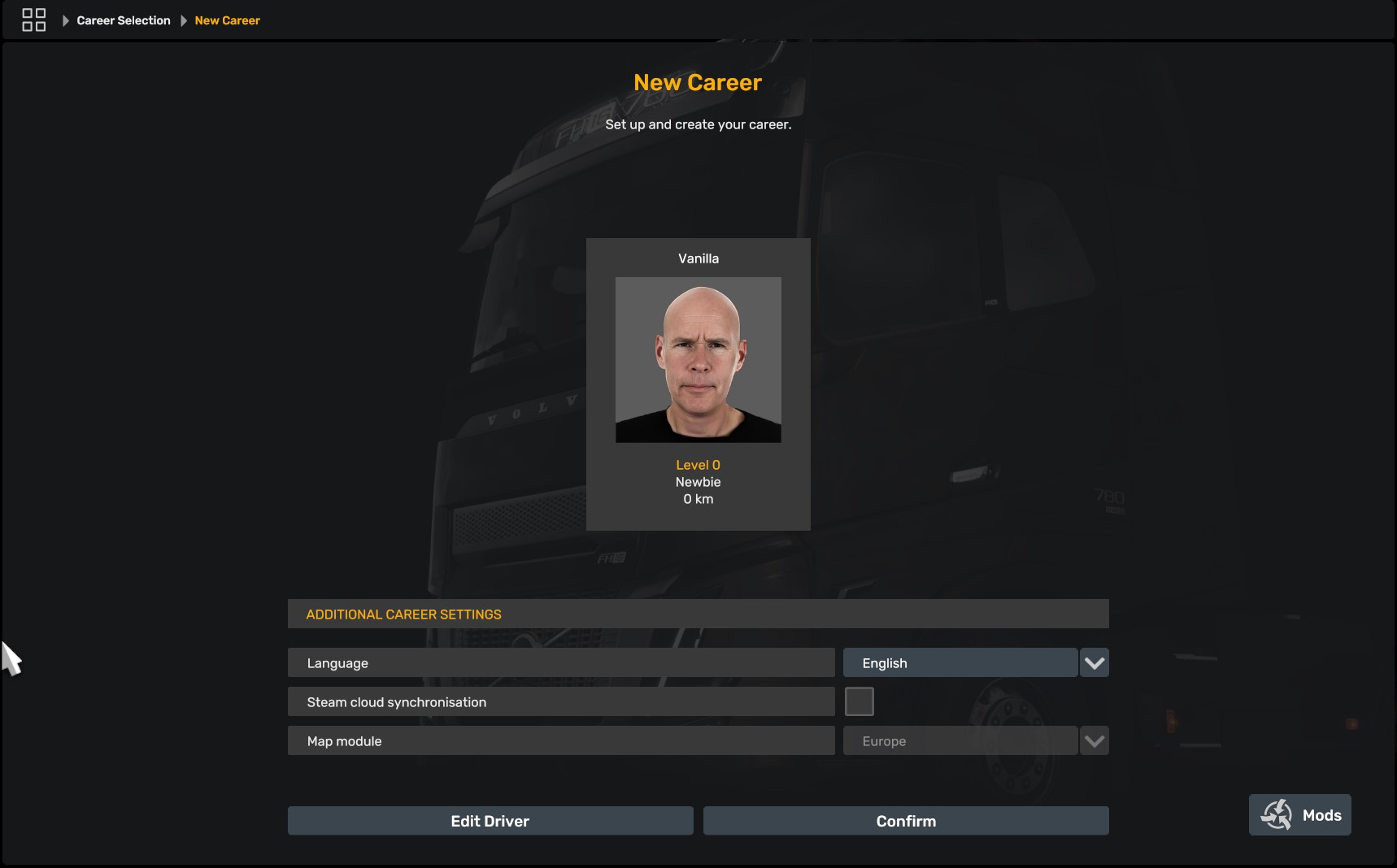
In the specific case of “The Route of the Wolves” mods collection guide, we recommend you to create the following Careers:
- Vanilla: to play it when the game is between updates and the majority of mods are being updated and or being tested to be compatible with the new version of the game.
- Takoda + GMC: to play both lists together (recommended) as an immersive and complete experience. This is your main career in which you should never play without the mods from both lists, in order to avoid issues, and even risking to corrupt your saves files.
- Takoda ONLY: to play it regularly with the full list of our Collection, without any other extra mods. It also serves as a testing profile to troubleshoot issues.
- GMC Maps ONLY: if you add the maps of their collection (recommended), to play with them without any other mods, including ours. It also servers as a testing profile to troubleshoot issues.
- Takoda Convoy (Coming Soon): to play Multiplayer Convoy with mods compatibles with this mode.
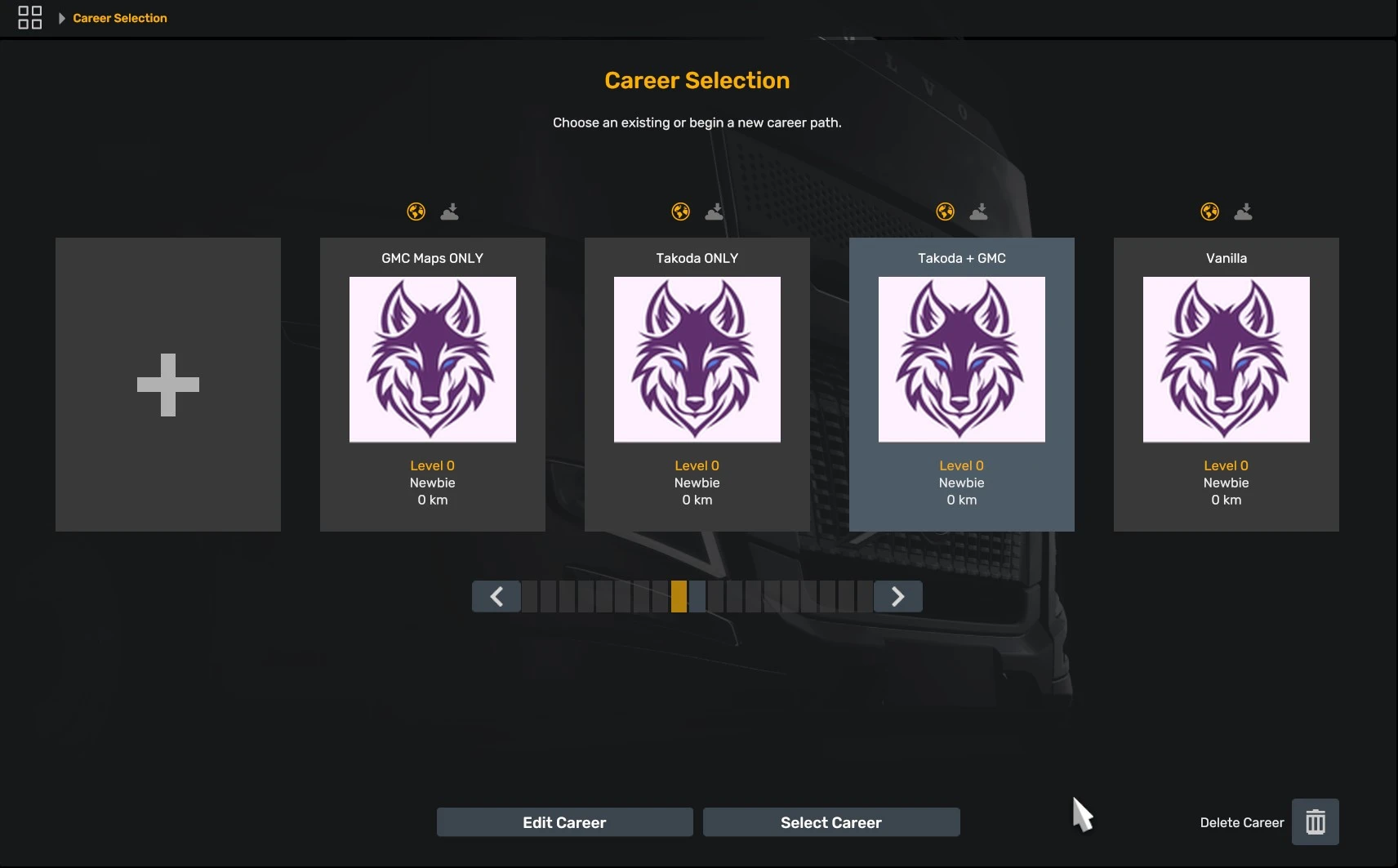
How to create and setup your first Career?:
- Select Change Career, click in the Add symbol (+).
- In the next window, write the driver’s name, here you write the profile’s name, for example “Vanilla”. Select male or female, later you can change the profile picture if you want. Click Continue.
- Select Language and decide if you want to storage/synchronize your saves at Steam cloud. SINCE THIS TIME WE NEED TO COPY AND PASTE THE PROFILE SETTINGS, LEAVE IT DISABLED FOR NOW SO THE GAME STORE THE SETTINGS IN YOUR OPERATIVE SYSTEM INSTEAD. Click Confirm.
- Connect your new career to World of Trucks (recommended). If you have already an account, fill the Email and Password, select remember password and Connect. If you don’t have an account, Select Create New Account and you will be redirected to the website where you can create an account first, then comeback to this step. At the website you can upload your own image if that is what you want
- Do not start playing at this point, just keep creating the Careers you need repeating the steps above. The reason for this is because each new Career will not carry your personalized preferences in terms of Graphic, Sound, Keyboard and Wheel, so you will have to do it manually in each Profile, but we will do it in a better way (remember to leave Steam Cloud Synchronization disabled for the rest of the Profiles too):
- Once done with the Careers, if this is your first time playing ETS2 (unlikely but still possible) start the Vanilla profile and take your time to setup all the settings you want to adjust to your personal preferences. Be patient and dedicate time to get it right this first time, graphic, gameplay, sounds, keyboard and wheel.
But if this is not your first run, and you already have a Career with all the settings you prefer, start it and play a few minutes with it, so it get registered that this was the last profile played, information that will useful in the next step.
To be clear: you do not need to do the settings process all over again in each Career, just once in any of them and now we will copy/paste them in the other Profiles.
How to copy and paste the Career Settings in the rest of the profiles?:
- Once you have played for a few minutes and configured all your settings, is time to close the game and carry that Career profile preferences to the rest of the profiles in a easy way.
- In your operative system, go to Documents/Euro Truck Simulator 2/profiles.
- There you will see the same amount of folders than the Careers you have in-game. So if you have 4 Careers showing in-game, here you will have 4 folders.
- IMPORTANTE: Before you proceed, and just to play extra safe, backup the entire Profile folder and save a copy in another location on your system, just in case you make any mistakes. Do it now, please.
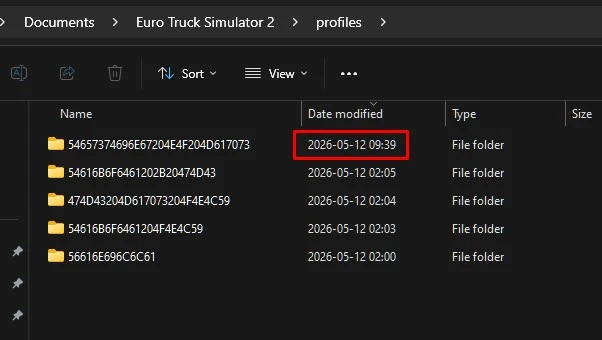
- Since this folders are numbered, not named, in order to select as source the one we want to carry to the other Careers, we need to put attention to the Date Modified information, that is why is important to play a bit with it selected in-game, to be the last selected and played. See screenshot, where you can see that the last played profile is the 54657374696E67204E4F204D617073:
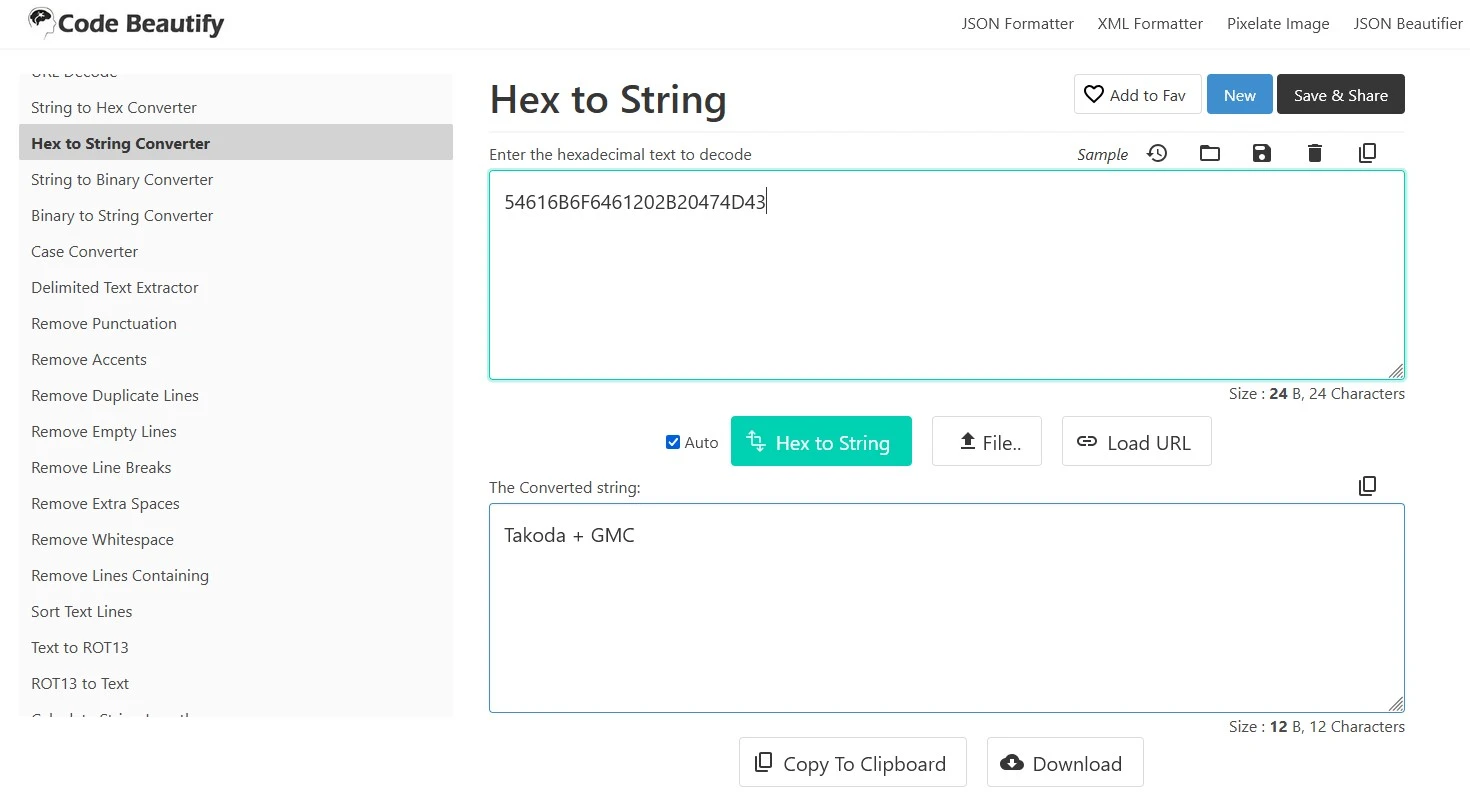
TIP: Another way to select the correct source profile folder is to use a third party website. Copy the entire number of any of the folders and go to https://codebeautify.org/hex-string-converter, there you will paste the number and will give you the same name of the profile as is seem in-game.
- Now go inside the profile we want to copy and select config.cfg, config_local.cfg y controls.sii and copy them all:
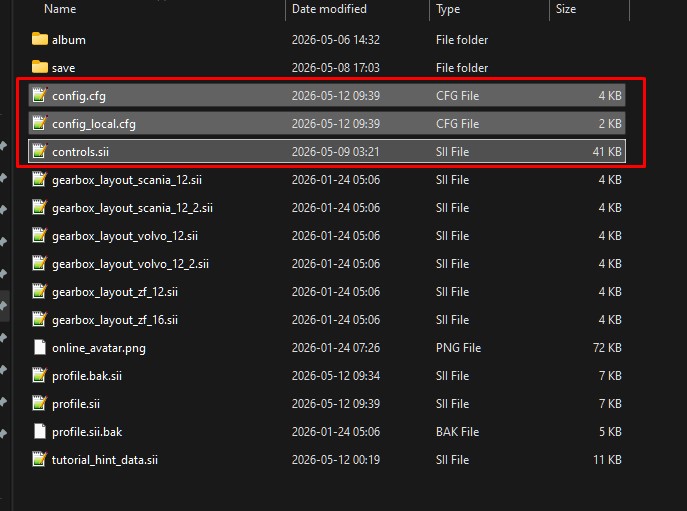
- Now go inside each of the rest of the profiles and paste there the three files copied, when the system shows you the Replace or Skip selection window, chose “Replace”. Be aware that because you are making manual changes to each profile, now the time modified are being updated, and the last profile where you paste the three files will be the most recent “Date modified”.
- Keep doing it for the rest of the profiles until all have the settings from the original Career.
- Go in game and test each career and check your settings carried properly.
- Done!
- Be aware that with this method you will only copy the settings, but not your in-game progress, like profits, map progress, trucks and anything else related to the game. If you want to also carry your progress, follow the instructions in the video below instead.
